Select “Search” from the menu bar and search/select the assets of your choice. You can also select “Get All” to select all of your available assets.
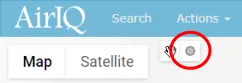
In the top left of the map on AirIQ Fleet, select the small gray circle icon and draw a circle.
Your cursor will turn into a + and you’ll be able to draw a circle on the map by clicking anywhere, holding and dragging.
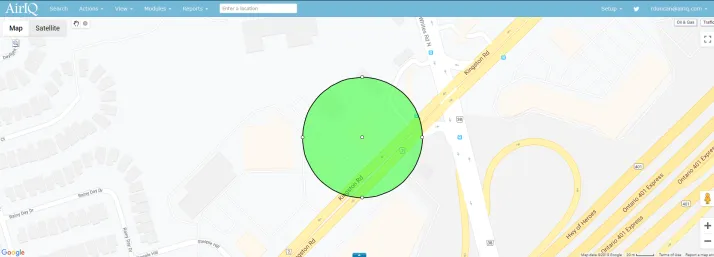
To resize the radius you’ve drawn, click it once and you’ll see 4 smaller circles show up around the edge – you can use those to drag and resize the circle. To delete the radius so you can draw another, double click on it.
Note: This search method will only search your preselected assets.
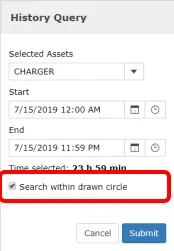
Proceed as you would with searching historical data, ensuring you click the “Search within drawn circle” box noted below, then select “Submit.”
(Refer to the “Accessing Historical Data” section for more information regarding performing a history query.)