
How to do the thing
you came here to do.
The tasks customers call about most, with the actual steps. If yours is not here, Client Care picks up the phone.
Getting into the account.
I forgot my password
Go to airiqfleet.com and use the forgot your password link on the sign-in screen. You set the new one yourself.
Nobody at AirIQ can see it, and neither can your own administrator. That is deliberate.
Which browser do I need
Chrome or Firefox. Internet Explorer and other legacy browsers are no longer supported.
There is nothing to install. AirIQ Fleet runs in the browser, on a desktop, a phone or a tablet.
Add someone to the account
Open Setup, then Users, then New User. Enter their work email and set what they can reach.
Permissions go down to the individual report and the individual action. They get an activation email and choose their own password.
You need admin permission to add a user.
Set your units, time zone and map defaults
Click your email in the top right and choose Options. That is where miles or kilometers lives, along with your time zone and how often the map refreshes itself.
The same screen decides what you get on sign-in: which assets load, whether they cluster, whether route lines follow the roads or run straight, and whether geofences are drawn.
These are yours alone. Changing them does not affect anyone else on the account.
Open a module in a second tab
Click the new tab icon on a module and it opens in its own browser tab instead of taking over the one you are in.
Handy when you want a report open beside the live map rather than clicking between them.
Getting footage out, and knowing how far back it goes.
I need footage for an insurer
Run a history query for the vehicle, the date and the time. Events come back in a list, and a film icon marks the ones with video.
Click the film icon, then use the three-dot menu in the corner of the player to download the clip.
Why can I see some clips and not others
Events caused by the driver are uploaded to the cloud on their own: tamper, SOS, distracted driving, vibration, harsh braking, rapid acceleration and sharp turns. Those play at any time.
Routine events stay on the camera: arrive, leave, tracking, power up and power down. The camera has to be powered for those to come back.
How far back can I look
Tracking history is held for at least two years before it is archived.
Camera event video is stored for up to 120 days. Footage on the camera itself is overwritten as new video is recorded.
I need a long stretch, not one event
Take the micro SD card out of the camera and read it with a card reader. That is the practical way to get more than an event clip.
The card sits behind an anti-tamper panel, so you will need the proprietary screw driver that came with the install.
My camera icon is red
The IQ-CAM has not been calibrated. Until it is, live video and most event types will not work.
Open the camera settings in AirIQ Fleet and start recalibration. Detection sensitivity can be set to low, medium or high.
Watch live video from a camera
Click the camera icon in the asset's Actions column and a live window opens. The plus in the corner adds the driver-facing view next to the road view.
Close it when you are done. Live video runs against the camera's data allowance, so leaving it open all afternoon is an expensive way to watch a parking lot.
If the camera is asleep, tap the screen on the unit to wake it and try again.
Turn the driver camera, microphone or distraction alerts off
All of it sits in camera settings on the asset. The driver-facing view, the microphone, vibration detection in standby, driver-behavior events and distracted-driving alerts each switch on and off on their own.
The microphone applies to recordings, not to live video.
Distraction detection works by watching the driver's eyes, so sunglasses can set it off. If a driver is getting flagged all day, turn the sensitivity down before you turn the feature off.
Making the platform tell you things without being asked.
Get a report emailed on a schedule
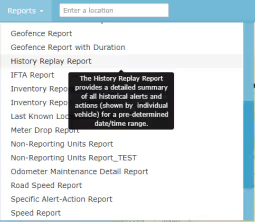
Open Reports, choose the report, then set the assets, the fleet and the date range.
Report Subscriptions sends it daily, weekly, every two weeks, monthly or quarterly, as CSV, PDF, Excel, Word or MHTML.
There is a limit of ten subscriptions per user, and your administrator grants access to the feature.
Get more detail in a report
Switch the report format from standard to enhanced.
Enhanced adds fuller address information and asset details such as make, model, voltage and ignition state.
Set up an alert
Open Setup, then Notifications. Add the people who should receive alerts to your address book first, or there is nowhere to send them.
Build a trigger, name it something your team will recognize, and choose which events fire it. You can also set the hours it is allowed to reach you.
Get an alert as a text message
Notifications are delivered by email. To reach a phone as a text, add the carrier's email-to-SMS address to your address book with the number in front of it.
AT&T 5551234567@txt.att.net
Verizon 5551234567@vtext.com
T-Mobile 5551234567@tmomail.net
Sprint 5551234567@messaging.sprintpcs.com
Swap in the ten-digit number with no dashes. On another carrier, Client Care can tell you the format.
Create a geofence
The quick way: right-click the spot on the map and choose add new geofence.
The full editor is under Setup, then Geofences. Draw a circle, drag a rectangle, or trace the boundary corner by corner.
Right-click a fence you already have to edit it or set its notifications. You need admin permission for the geofence module.
Day-to-day things you do to an asset.
Set a maintenance reminder
Open Maintenance and choose Schedules on the asset. Set it against odometer, date or engine hours.
Set the interval and the reminder, and the email arrives before the deadline. Oil at every 5,000 km with a 1,000 km reminder emails you at 9,000.
Only admins create schedules. Anyone can log a service record against one.
The odometer is wrong
Vehicles with a connected engine module report their own odometer, as long as the make and model support it. Nothing to do there.
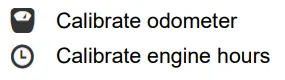
Everything else you calibrate once, on the asset, and it tracks from that point. Engine hours work the same way, and each has its own icon in the asset's data grid.
Worth doing at install. Calibrate it then and every reading afterwards is right.
Stop a vehicle from being started
Open Actions, choose Vehicle Disable, select execute now and submit.
This is only available on certain device models, and it needs separate wiring installed and tested by your installer. Check with Client Care before you rely on it.
Move a tracker to a different vehicle
Plug-in devices move between vehicles freely. Unplug it from one and plug it into the next.
Tell Client Care so the unit is reassigned to the right vehicle in your account, otherwise the trips land under the old one.
Rename an asset or move it to another fleet
Search for the asset and open Edit Asset. The name, the fleet it belongs to and the asset type all change there.
Asset type is worth getting right. It decides which icon the vehicle gets on the map, which is the difference between reading the yard at a glance and squinting at it.
Find everything inside an area on the map
This is the radius search. Select the assets you care about first, or choose Get All. Then click the circle icon at the top left of the map and drag a circle over the area. The handles resize it, a double-click removes it.
In a history query, tick search within drawn circle to limit the results to what sits inside.
One catch worth knowing: it only looks at the assets you selected before drawing. If the answer comes back emptier than expected, that is usually why.
Log a service record
Open Maintenance, choose Service on the asset, then New Service Record, and fill in what was done.
Tick update schedule when you close it and the matching maintenance schedule rolls forward on its own, so the next reminder counts from this service rather than the last one. Skip that and the reminders keep firing against an old date.
Change what the asset list shows
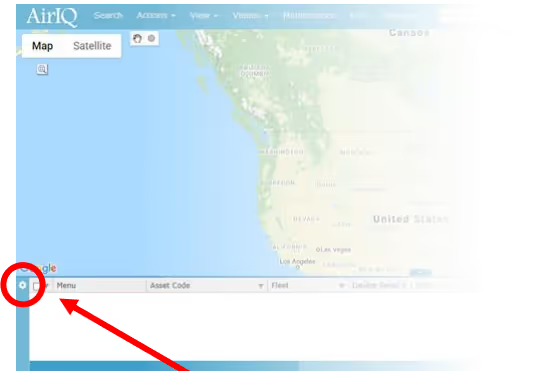
Click the cog beside the grid. You can switch between grid and card view, move it to the side or the bottom, pick which columns appear, and set what the list sorts by.
On a phone you can also choose whether it opens on the map or the asset list.
Refresh the browser after saving, or the old layout hangs around.
The long version, with the screens.
23 walkthroughs of AirIQ Fleet, each one screenshotted at every step. For when you would rather be shown than told.
Getting startedSigning in, users, history, and the notifications that reach you.
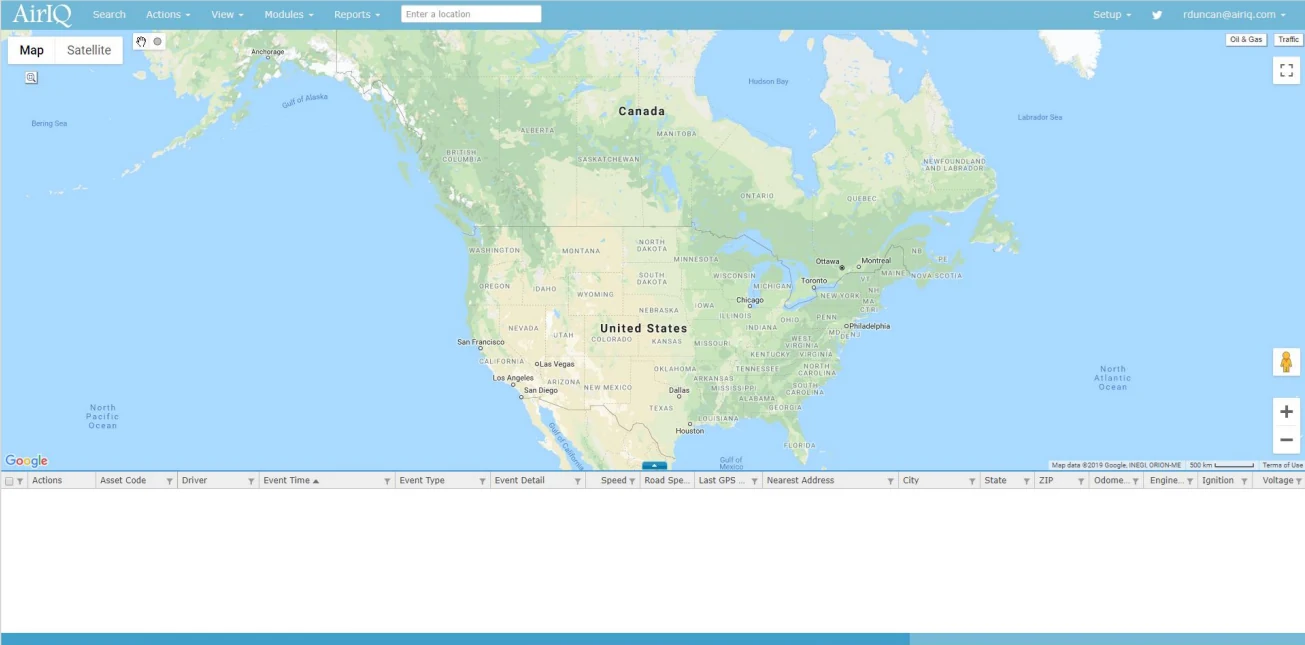 Accessing AirIQ FleetEverything for logging in and accessing AirIQ's Fleet Management SoftwareChanging Your PasswordReset your own password from inside AirIQ Fleet, and what the password has to contain.
 Accessing Historical DataHow to access your historical data on AirIQ Fleet
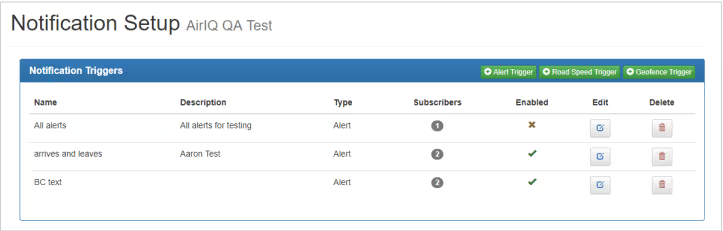 Setting Up E-mail and Text NotificationsHow to receive e-mail and text notifications from AirIQ Fleet Software
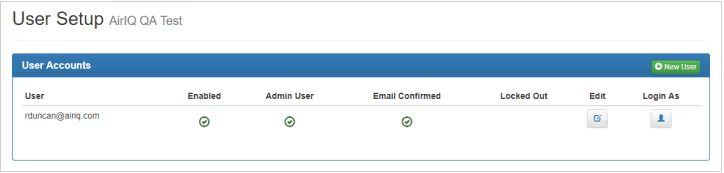 Setting Up A New UserSetting up a new user for your AirIQ Fleet Software
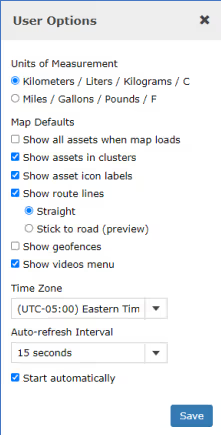 Setting User OptionsSet your own units, time zone, map defaults and refresh interval. These are yours alone and do not affect anyone else on the account.
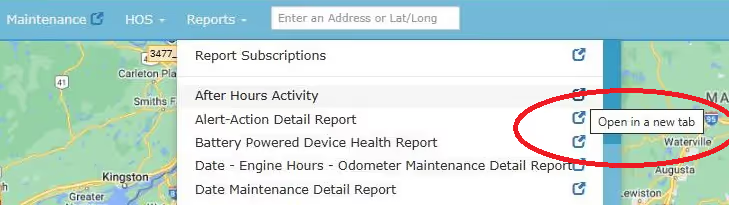 Opening a New WindowOpen modules in the same tab or different tabs
Video and camerasCalibrating an IQ-CAM, watching live, and pulling a clip for a claim.
 Calibrating your IQ-CAMYou can manage all basic functionality for your IQ-CAM on AirIQ Fleet, including calibration, event and sensitivity settings, recordings and more
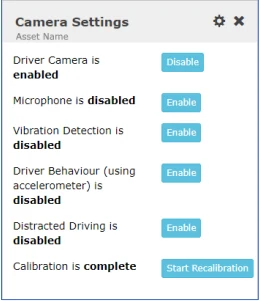 Camera SettingsHere, you can manage the settings on your IQ-CAM.
 Viewing Live VideoView live video from your IQ-CAMViewing historic videoLearn how to view your historic video/recordings
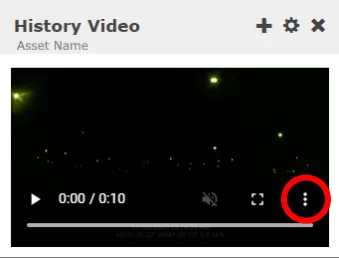 Downloading video clips from AirIQ FleetPull a clip off an event and save it to your machine, which is what an insurer or an adjuster will ask you for.
Actions and toolsThe things you do to an asset: search, edit, geofence, maintain.
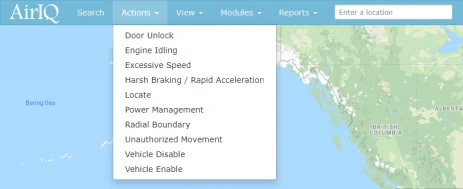 Performing ActionsLearn how to access various actions
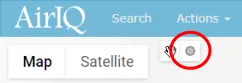 Using the Radius Search toolThe Radius Search tool allows users to search historical data within a pre-selected radius anywhere on the map.
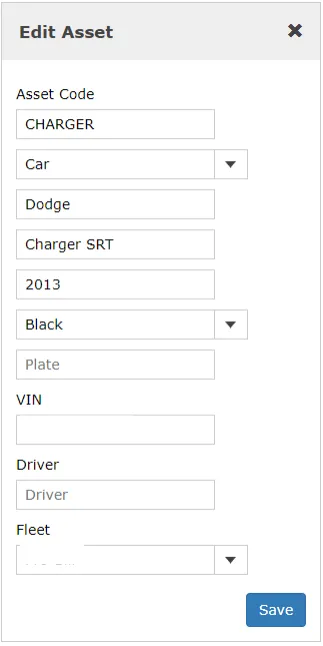 Editing Asset DetailsSearch and select the asset you wish to work with: Use the same steps as outlined under “Accessing AirIQ Fleet” (step 3)
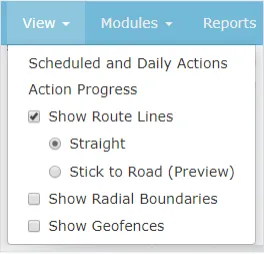 Using the View menuLearn How to use the view drop down menu
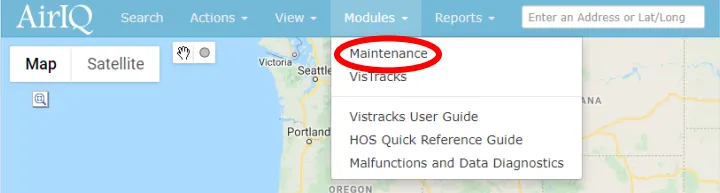 Adding Maintenance SchedulesSet a service interval against odometer, date or engine hours, so the reminder reaches you before the work falls due. Admin permission required.Adding Maintenance Service RecordsLog the work that was done and roll the schedule forward, so the next reminder counts from this service rather than the last one.
 Adding GeofencesLearn How to add geofences to the AirIQ Fleet software
 Grid and Card optionsThe Grid and Card options menu allows you to change various viewing preferences for your asset list.
ReportsRunning a report once, or having it arrive on a schedule.

Vehicles and devicesKeeping what the platform knows about a vehicle correct.
Spec sheets and install guides.
Full specifications for every product are on its page, in the tech specs section. No form, no email address required.
Install guidance is here too. IQ-Plug and IQ-BAT you fit yourself, and those pages are the whole procedure. IQ-Wired and IQ-CAM need a qualified installer, so those pages cover what the appointment involves and how to check the work afterwards.
Asked most often.
How long does AirIQ keep my data?
How do I get incident footage out of AirIQ Fleet?
Can I reset my own password?
How secure is my fleet data?
Can using a GPS tracker reduce my insurance costs?
How do I get a spec sheet or an install guide?
Who do I call when something is wrong?
Two things people ask to be shown.
Footage requests come first.
If you need incident video pulled for an insurer or a dispute, call and say so. That is the moment this company exists for.