
Viewing live video
To view live video from your IQ-CAM, ensure it is online and connected, then select the camera icon in the “Actions” column on AirIQ Fleet.

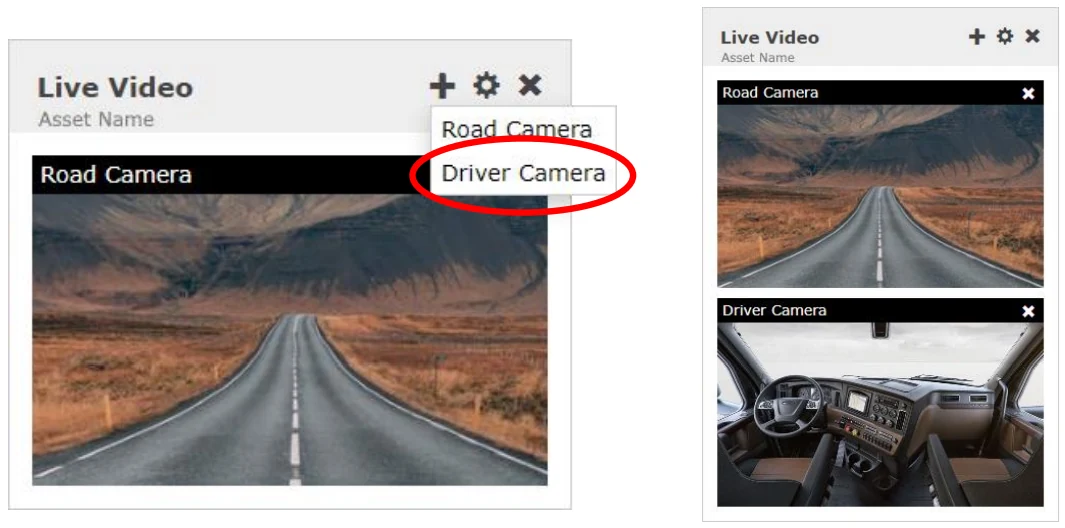
You will then be presented with a small “Live Video” window. To view the driver-facing camera (if enabled), select the “ + “ symbol in the top right corner, and select “Driver Camera.” You should now see the driver-facing camera.
If your IQ-CAM is not calibrated, you will see a red camera icon and be unable to view live video –instead, you will be prompted to calibrate your IQ-CAM. To turn off live video, click the X button in the top right corner of the “live video” window. We recommend that you do not leave live video on for a long period of time to ensure the IQ-CAM’s data limits are not exceeded.